Headless Craft CMS with GraphQL and React, Part 4: Populating a Single Entry Page
November 12, 2025
Now that we've populated our listing page with our recipe data it's time to configure our single entry recipe template.
Write a Single Entry GraphQL Query
Head over to your GraphiQL sandbox and type out the following:
query GetSingleRecipe(
  $section: [String]
  $slug: [String]!
) {
  entry(
    section: $section
    slug: $slug
  ) {
    title
    ... on recipe_Entry {
      image {
        url
      }
      ingredients {
        quantity
        ingredient
        preparation
      }
      instructions {
        rawHtml
      }
    }
  }
}
This is pretty similar to our GetRecipeEntries listing query except we've added a new variable called $slug. This is where we will tell GraphQL specifically which recipe entry we want to return. Like with $section we will be passing in an array of strings, but this time we want to make sure that a slug variable is submitted in order to return data, so we make the variable required by adding the ! flag.
Since we're querying for a single entry instead of a list of entries, we replace Craft's entries keyword with entry. This will return a single data object instead of an array that we have to loop through. Again we drill down into the Recipe entry type in order to access the entry fields. Since ingredients is a table field it will return an array of rows, and we pass in the column names to get back the data for each row.
CKEditor gives us the option to return its contents in plain text, markdown format, or raw HTML. We'll use raw HTML for displaying on our front-end HTML page.
Click "Play" to confirm the query is correct and...
"Variable \"$slug\" of required type \"[String]!\" was not provided."Whoops! We forgot to pass in a $slug variable, and since it's required GraphQL can't complete our request. Open up the Variables tab at the bottom of the sandbox and add the variable:
{
  "section": ["recipes"],
  "slug": ["buttermilk-pancakes"] // <-- enter the slug of the entry you'd like to access
}
Alright, now when we click "Play" we get back all the field data for our single recipe entry. This query is ready for primetime!
Create a New Apollo Query
Back in our React application create a new file in the data folder called single-recipe-query.js. Just like with our recipe listing we'll paste in our query and export it for use on our entry template.
import { gql } from "@apollo/client";

const GET_SINGLE_RECIPE = gql`
    query GetSingleRecipe(
        $section: [String]
        $slug: [String]!
    ) {
        entry(
            section: $section
            slug: $slug
        ) {
            title
            ... on recipe_Entry {
                image {
                    url
                }
                ingredients {
                    quantity
                    ingredient
                    preparation
                }
                instructions {
                    rawHtml
                }
            }
        }
    }
`;

export default GET_SINGLE_RECIPE;
Call the Query Inside the Single Entry Template
Open up your single entry template file. In my Next.js setup this is located at pages/recipes/[slug].js. Just as with the listing page we're going to import our GET_SINGLE_RECIPE query and execute it with Apollo's useQuery hook.
import { useRouter } from "next/router";
import { useQuery } from "@apollo/client/react";
import GET_SINGLE_RECIPE from "@/data/single-recipe-query";

export default function Recipe() {
  const router = useRouter();
  const { slug } = router.query;

  const queryVariables = {
    'section': ['recipes'],
    'slug': slug
  }

  const { error, data } = useQuery(GET_SINGLE_RECIPE, { variables: queryVariables });

  if(error) {
    console.error(error);
    return <p>There was an error fetching the entry.</p>;
  }

  if (!data) return null;

  // ...
}
As with our listing page we create a set of variables to pass to the query, and this time we need to pass in the page slug. How you get this slug depends on your specific framework; Next.js provides a router hook for accessing the current page's slug.
Pass the Data to the Component
Just as before we'll replace our placeholder content with the variables from our data request. To save having to type data.entry over and over in our template we'll create an entry variable from the entry data returned from GraphQL.
const entry = data.entry;

return (
  <>
    <Head>
      <title>{entry.title} | The Crafty Cook</title>
    </Head>

    <GlobalHeader />

    <main className="recipe-entry">
      <header>
        <div className="layout-section">
          <h1>{entry.title}</h1>
          <Image src={entry.image[0].url} alt={entry.title} width="1440" height="960" />
        </div>
      </header>

      <div className="body">
        <div className="layout-section">
          <section className="ingredient-list">
            <h2>Ingredients</h2>
            <ul>
              {entry.ingredients.map( (row, index) => (
                <li key={index}>
                  {row.quantity} {row.ingredient}{row.preparation && ', ' + row.preparation}
                </li>
              ))}
            </ul>
          </section>
          <section className="instructions">
            <h2>Instructions</h2>
            { entry.instructions.rawHtml }
          </section>
        </div>
      </div>
    </main>

    <GlobalFooter />
  </>
);
<Head> is a Next.js-provided component for assigning document metadata like the page <title>.
Since ingredient preparation is an optional field, we use a conditional operator to display it only if it exists, adding a comma and a space in front of the text.
Save this and view it in the browser at /recipes/buttermilk-pancakes. Looks pretty good — but wait! — the HTML tags for the instructions are displaying as text.
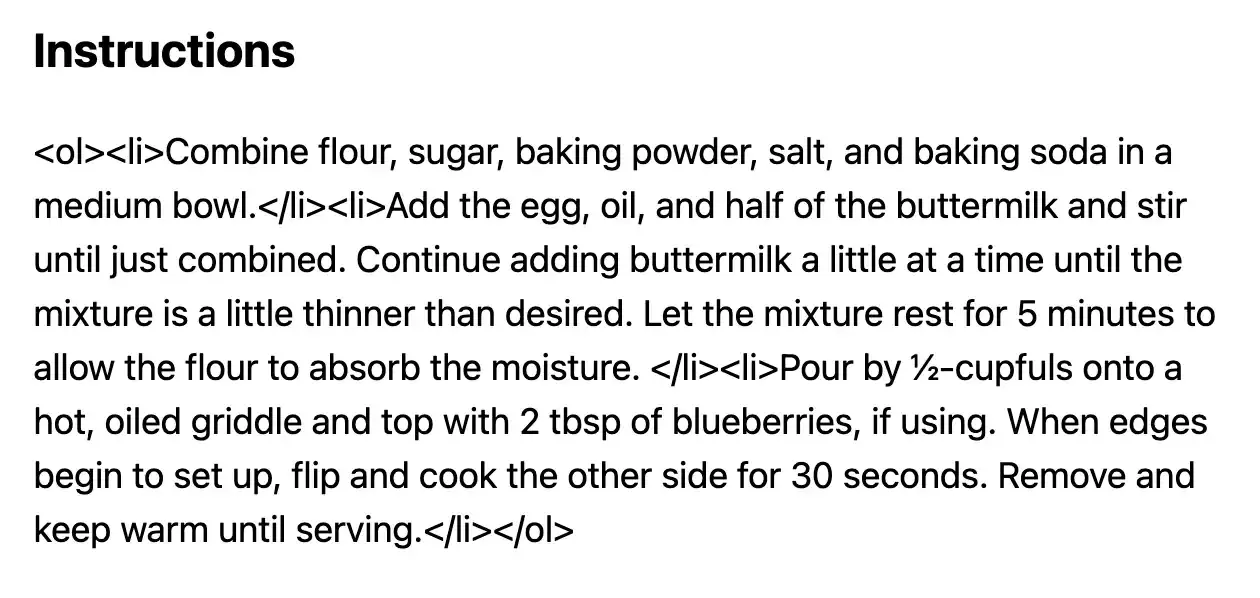
We need to parse the HTML tags inside React, and to do that we'll need a library.
Parse the Instructions HTML with html-react-parser
First, install the package:
npm install html-react-parserThen import the parser to your component file and wrap the instructions data tag with the parse() tag.
import parse from 'html-react-parser';

// ...

return (
  // ...

  <section className="instructions">
    <h2>Instructions</h2>
    { parse(entry.instructions.rawHtml) }
  </section>

  // ...
);
Looking good! This template is almost ready to go, but let's add some logic to throw a 404 error in case the recipe slug doesn't exist.
Throw a 404 for Non-Existent Entry Slugs
Again, the specific 404 routing behavior is unique to your framework. Next.js provides an Error component we can use for easy 404 handling.
When we pass in a non-existent slug to GraphQL, the data.entry field returns a null value. So we just have to check for a null value and return the error component:
import Error from "next/error";

// ...

const entry = data.entry;

// if the entry does not exist throw a 404
if(entry === null) {
  return <Error statusCode="404" />
}

return (
  // template code
);
Awesome! This template is ready to go!
We now have a fully functional website with a listing page and an entry page. We could just stop here, but why not add some nice features to make the site easier to use? In the next few lessons we'll add pagination to our listing page, configure a field to search for recipes, and enable filtering recipes by dietary restrictions.